Watch party with video chat: see your friends while you watch
Text chat is fine for a comedy. For horror, finales and anything with a twist, you want to see faces. Here's how to add voice and video to a watch party without covering the film.

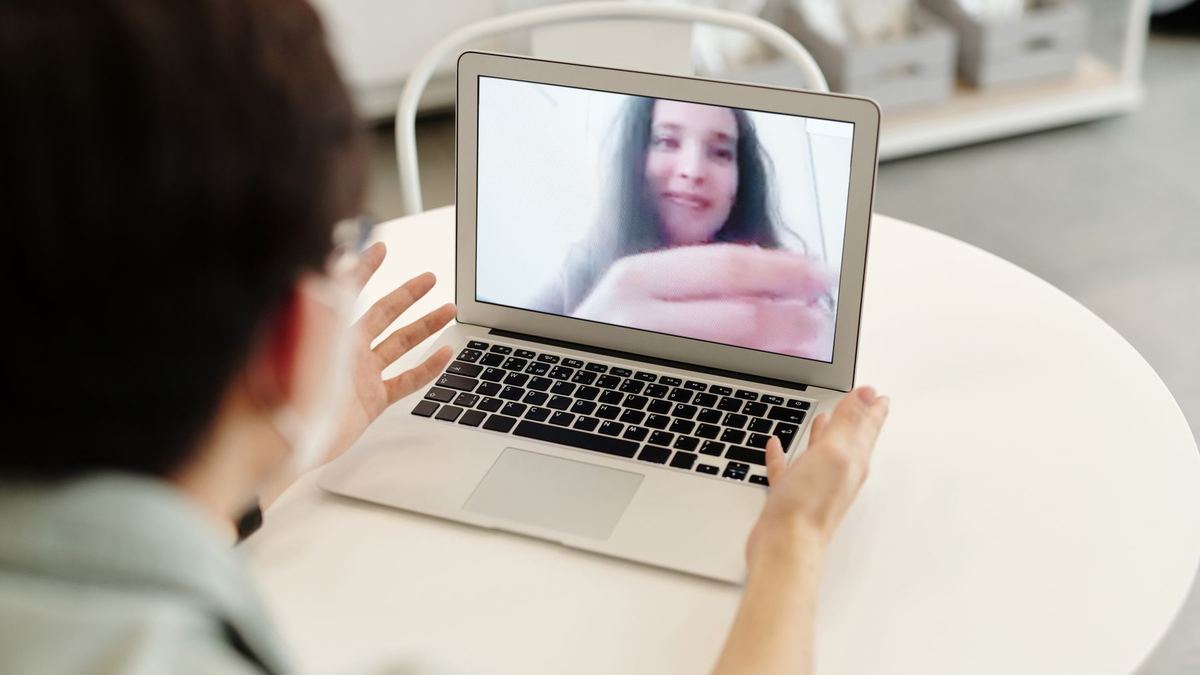
A watch party with video chat is the closest thing to sitting on the same couch. You hear the gasp when the twist lands, you see who covered their eyes, and the jokes happen at the speed of talking instead of typing. For a long-distance couple or a friend group spread across time zones, that's often the part they miss most.
Getting there used to mean juggling two apps. Here's how to do it in one place, and how to keep cameras from taking over the night.
Why add video chat to a watch party
Text chat works well for commentary. It's quiet, it doesn't interrupt the dialogue, and people can scroll back. But some moments don't translate into a message. A jump scare, a goal in the last minute, a final episode reveal: you want to see the reaction, not read "OMG" three seconds later.
Voice and video also change who joins. Friends who never type much in a group chat tend to talk once they can just say something.
The usual setup and its problems
Most groups start with a call running in a separate app while they watch. Somebody opens Zoom, FaceTime or Discord, everyone starts the film on their own, and the call window floats somewhere on the screen.
It works, mostly. The call window covers part of the film or hides behind it. The film's audio leaks back into everyone's microphone. And if anyone pauses, the players drift apart, so you end up with the "wait, where are you?" conversation every twenty minutes.
Sharing one screen over the call solves the timing but costs you the picture. Video calls compress the shared screen hard, and some streaming services show a black screen when you try. We cover that in why screen sharing a movie looks bad.
Watch party video chat with Watchbear
Watchbear puts the sync and the call in the same side panel. The film plays in each person's own browser at full quality, and the panel next to it holds the chat, the reactions and the call.
A few details make it work for watching rather than meetings:
- Video tiles sit in the side panel beside the film, never over it.
- Your camera starts off every time you join, so nobody sees you before you're ready.
- Calls are peer to peer. Sound and picture go directly between the people in the room.
- Call quality adapts as the room fills, so faces don't eat the bandwidth your film needs.
- Voice has a mute button and speaking indicators, so you can tell who said "did you see that?"
Up to 8 people can be on voice or camera at the same time, inside a room that holds up to 50. In a big group, a few people talk and the rest use the chat and emoji reactions.
How to switch it on
- Start a room the usual way. Open the video, click the bear, and send the invite link. Our guide to hosting a watch party walks through it step by step.
- When you want to talk, switch on your microphone or camera in the side panel.
- The first time, Chrome asks for permission to use your camera and microphone. Allow it for Watchbear.
Watchbear itself is a free install from the Chrome Web Store. Everyone in the room needs it, and the invite link sends new guests there first.
Tip: wear headphones whenever your mic is on. Without them, your microphone picks up the film from your speakers and everyone hears it twice, slightly out of step.
Tips for a watch party with video chat
Cameras on for the edges of the night
Faces matter most before and after the film: saying hello, showing off the snacks, arguing about the ending. During the film, a lot of groups switch cameras off and keep voice on. It keeps attention on the screen and saves bandwidth.
Mute during quiet scenes
Breathing, typing and a fridge door all travel well over a mic. In groups of more than three or four, people stay muted by default and unmute to talk. The speaking indicator makes it easy to spot who forgot.
Light your face from the front
A lamp behind you turns you into a silhouette. A lamp in front of you, or the glow of the laptop screen in a dim room, works better for movie night lighting anyway.
Decide who's on camera in big groups
With more than 8 people, not everyone can be on voice or camera at once. Pick the people who'll do most of the talking, or rotate between films. Everyone else can still react in the chat.
Let the film win on a slow connection
If the video starts stuttering on a weak connection, switch your camera off first. Each person's film streams separately, so your call is the easiest thing to give up.
Who it's for
Long-distance couples get the most out of it. A face in the corner of the screen turns two people watching alone into a date. Our long-distance movie night ideas pair well with it.
It also suits friend groups on finale and horror nights, when the reactions are half the fun. Families can use it so grandparents see the kids during a cartoon, which our guide to watching movies online with family covers in more detail. Remote teams can turn it into a virtual movie night that feels less like another meeting.
Common questions
Can you video chat during a watch party?
Yes. Watchbear has voice and video chat built into its side panel, so you can see and hear each other while the film plays in sync. The video tiles sit beside the film, not on top of it.
Is watch party video chat free?
Yes. Voice and video chat are part of Watchbear, which is free. Everyone signs in with their own Google account.
How many people can be on camera during a watch party?
Up to 8 people can be on voice or camera at the same time. The room itself holds up to 50, and everyone else can follow along in the chat.
Will people see me as soon as I join a watch party?
No. Your camera starts off every time you join a room, so you decide when to switch it on.