How to use the Chrome side panel, and how to close it
The side panel is the column that opens next to the page for bookmarks, history, Google Lens and some extensions. It is easy to open by accident and not obvious how to move or close. Here is all of it in one place.
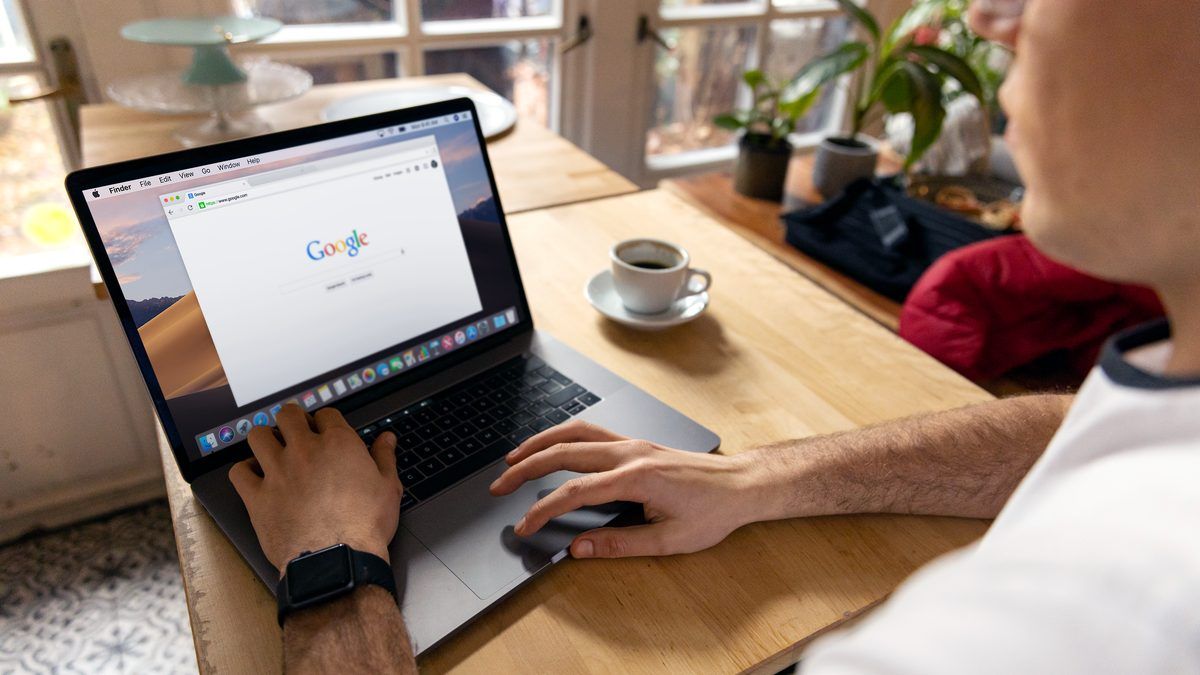
Chrome's side panel is the column that opens next to the page instead of over it. You can read your bookmarks, scroll through history or use Google Lens there while the page you were on stays visible. Extensions can put their own content in it too, which is how some tools show a chat or notes beside a website.
The steps below are from Google's help page, Manage Chrome side panel, checked on 28 November 2026. They apply to Chrome on a computer.
What can open in the side panel
Google's page lists these built-in panels:
- Reading list
- Bookmarks
- History
- Google Lens
- Reading mode
Extensions are the other source. Chrome has had an API for extension side panels since Chrome 114, according to Chrome's developer documentation, and an extension can open its panel when you click its toolbar icon.
How to open a panel
Each built-in panel opens from the More menu (the three dots at the top right) while you are on a website:
| Panel | Menu path |
|---|---|
| Google Lens | More, Search with Google Lens |
| Reading list | More, Bookmarks and lists, Reading list, Show reading list |
| Bookmarks | More, Bookmarks and lists, Show all bookmarks |
| History | More, History, Show history in side panel |
| Reading mode | More, More tools, Reading mode |
Pin a panel to the toolbar
If you use one panel often, pin it so one click opens it. Open the menu path above, and next to the item select Pin to toolbar. The icon appears on the toolbar near your profile picture.
To unpin, click the icon and choose Unpin from toolbar, or right-click it and choose Unpin.
Resize the panel
Hover over the edge of the panel between it and the page, hold the drag handle and pull it wider or narrower. The page reflows to fit the space that is left.
Move it to the left or right
- Open More, then Settings.
- Go to Appearance.
- Under Side panel, choose the side where the panel should open.
Close the side panel
Select Close (the X) at the top right of the panel. If it keeps coming back, check whether a pinned toolbar icon or an extension is opening it, and unpin that icon.
How Watchbear uses the side panel
Watchbear is a watch party extension for Chrome, and its whole interface lives in the side panel. When you start a room on a video, the panel holds:
- the room code and the invite link,
- the chat and emoji reactions,
- voice and video chat for up to 8 people at once.
Because the panel sits beside the page rather than on top of it, the film is never covered by chat messages or faces. You can make the panel narrower while the film plays and wider when you want to see everyone's cameras, using the drag handle described above.
Watchbear only works in Chrome on a computer, so this is the same panel and the same controls everyone in the room has. If the panel asks for your camera or microphone and you said no by accident, allowing camera and microphone access in Chrome shows how to fix it. To set up a full movie night, see how to host an online watch party.
Common questions
What is the side panel in Chrome?
A column that opens beside the web page on a computer. Google's help page lists the reading list, bookmarks, history, Google Lens and reading mode among what it can show, and extensions can add their own panels.
How do I open the side panel in Chrome?
Open a feature that uses it, for example More, then History, then Show history in side panel. Features you use often can be pinned to the toolbar so one click opens their panel.
How do I move the Chrome side panel to the left?
Go to More, Settings, Appearance, and under Side panel choose the side you want the panel to open on.
How do I close the side panel in Chrome?
Select the Close button at the top right of the panel. If a pinned toolbar icon keeps opening it, right-click the icon and choose Unpin.
Can I make the side panel wider?
Yes. Hold the drag handle on the edge of the panel and pull it to the width you want.