How to allow camera and microphone access in Chrome
Clicked Don't allow by mistake, or your camera works everywhere except in Chrome? There are three layers that can block it, and Chrome only controls two of them. Here they are in the order to check.
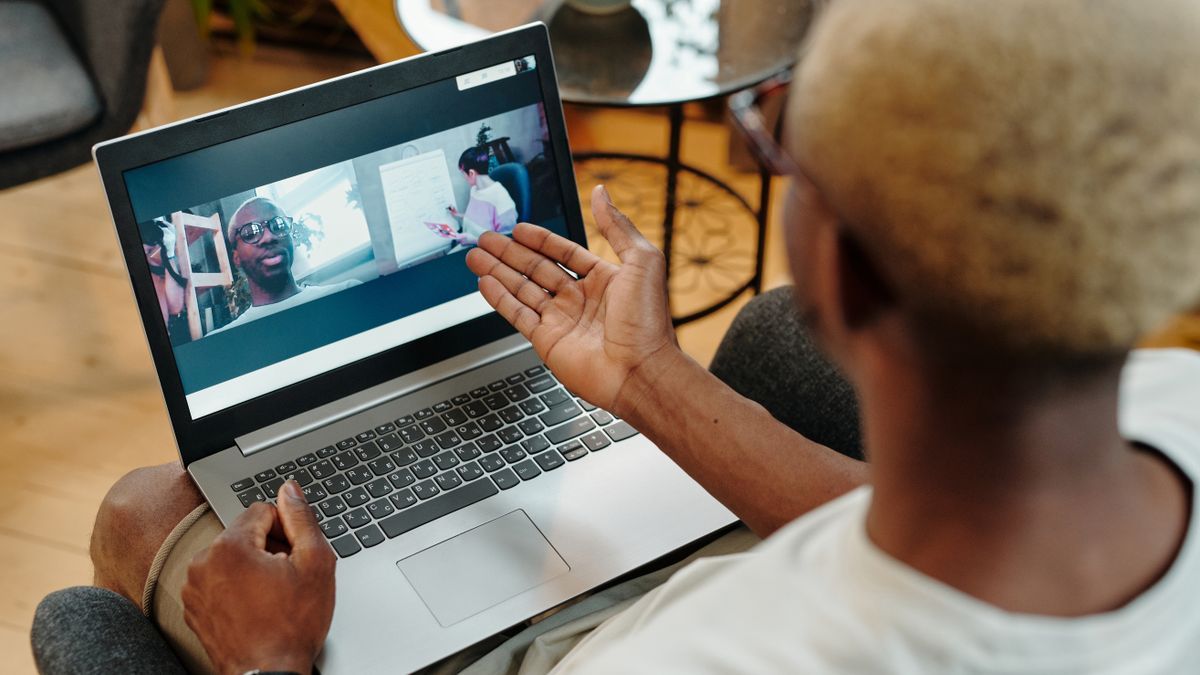
Video calls, voice chat, online meetings and watch parties with cameras all need two permissions from Chrome: the camera and the microphone. Most of the time Chrome asks once and you click Allow. When it doesn't work, the cause is almost always one of three things:
- You told Chrome not to allow it for that site, and Chrome remembered.
- Chrome's default for all sites is set to block.
- Your computer's own privacy setting blocks Chrome from the camera or microphone, so nothing in Chrome can fix it.
The steps below follow that order. They come from Google's help page on using your camera and microphone in Chrome, checked on 28 November 2026, and apply to Chrome on a computer.
1. Answer the prompt
The first time a site wants your camera or microphone, Chrome shows a prompt under the address bar with three choices:
- Allow while visiting the site: the site can use it every time you are on it.
- Allow this time: only for this visit.
- Never allow: blocked until you change it.
Google's page adds a detail worth knowing: an allowed site can start recording while you are on that site, but it can't start recording if you are in a different tab or another app.
2. Undo a block for one site
If you picked Never allow, or closed the prompt, Chrome won't ask again. Change it yourself:
- Click More (three dots, top right), then Settings.
- Open Privacy and security, then Site settings.
- Under Permissions, choose Camera or Microphone.
- Find the site under Not allowed to use your camera (or microphone), select it and change the permission to Allow.
There is a quicker route while you are on the site: click the icon to the left of the address bar and switch Camera or Microphone on in the panel that opens. Reload the page afterwards.
3. Check the default for all sites
On the same Camera and Microphone pages, the top option is the default for sites you haven't decided on yet. If it is set so sites aren't allowed to use the camera, no site will even ask. Set it to let sites ask, and decide per site from then on.
If these options are greyed out, Chrome is managed by your workplace or school. Google's page notes that in that case only the administrator can change camera and microphone settings.
4. Pick the right camera and microphone
Laptops with a headset, a USB microphone or a second camera often pick the wrong one. On the Camera and Microphone pages in Site settings, open the drop-down at the top and choose the device Chrome should use by default. Many call sites, including the one you are trying to use, also have their own device menu inside the call.
5. Allow Chrome in your computer's settings
If Chrome shows the permission as allowed and the camera still shows nothing, the block is outside Chrome. Google's page says Chrome may show a dialog with an Open settings button when this happens. The setting names differ by system:
- Windows 11: Settings, Privacy & security, Camera (and Microphone). Make sure camera access is on and that desktop apps are allowed to use it.
- macOS: System Settings, Privacy & Security, Camera (and Microphone). Turn on Google Chrome in the list.
macOS may ask you to quit Chrome for the change to take effect. Do that, or restart Chrome yourself.
Still not working?
Google's troubleshooting steps, shortened:
- Not muted? Check the mute switch on a headset cable and the mute button inside the call.
- Another app holding the camera? Close other call apps and any other tab with a call open. On many computers only one app can use the camera at a time.
- Leave and rejoin the call, then restart Chrome, then restart the computer.
- Ask the maker. If the device still fails in every app, the camera or microphone manufacturer is the next stop.
Camera and microphone in a watch party
Watchbear's video chat runs in Chrome's side panel next to the film, for up to 8 people at once in a room of up to 50, and it uses the same Chrome permissions as any site. Two things are specific to it:
- Your camera starts off every time you join a room. Nobody sees you until you switch it on.
- If you blocked the prompt, allow the camera and microphone in Chrome's site settings as described above, then switch them on again in the panel.
The calls go peer to peer between the people in the room and are not recorded or stored. For setting up the whole night, see how to host an online watch party, and for where the panel lives, how to use the Chrome side panel.
Common questions
How do I allow camera access on Chrome?
When a site asks, choose Allow while visiting the site or Allow this time. If you blocked it earlier, go to Settings, Privacy and security, Site settings, Camera, find the site under Not allowed to use your camera and change it to Allow.
How do I allow microphone access on Chrome?
The same way as the camera, under Settings, Privacy and security, Site settings, Microphone. You can also click the icon to the left of the address bar on the site and switch Microphone on there.
Why does Chrome not ask for camera permission?
Either you already answered for that site, so Chrome remembers it, or your computer's privacy settings block Chrome from the camera. Check the site in Chrome's site settings first, then the camera setting in Windows or macOS.
How do I choose which camera or microphone Chrome uses?
In Settings, Privacy and security, Site settings, open Camera or Microphone and pick the device from the drop-down at the top. Many video call sites also let you switch devices inside the call.
Can a site record me after I allow the camera?
Google's help page says an allowed site can start recording while you are on it, but not while you are in a different tab or another app. Remove the permission in site settings when you no longer use the site.